Scan your whole stack







Are you using pendify?
Find out what’s in your code.
Scan your apps free in minutes (opens in a new tab)Latest version: v0.1.15
pendify was last scanned on 23 Nov 2026 at version 0.1.15. Risk score 0 of 100. No malicious behavior was detected.
| Version | Published | Status |
|---|---|---|
| 0.1.15 LATEST | 23 Nov 2026 | No rules fired |
| 0.1.14 | 23 Nov 2026 | No rules fired |
| 0.1.13 | 20 Nov 2026 | No rules fired |
Findings for v0.1.15. The score is a capped sum of the weights of the rules that fired — not CVSS, not exploitability, and not a probability. It is not comparable across packages with different scan coverage.
The score describes 0.1.15; other versions have their own rules, not their own score.
The publisher’s own README, as collected from the registry.
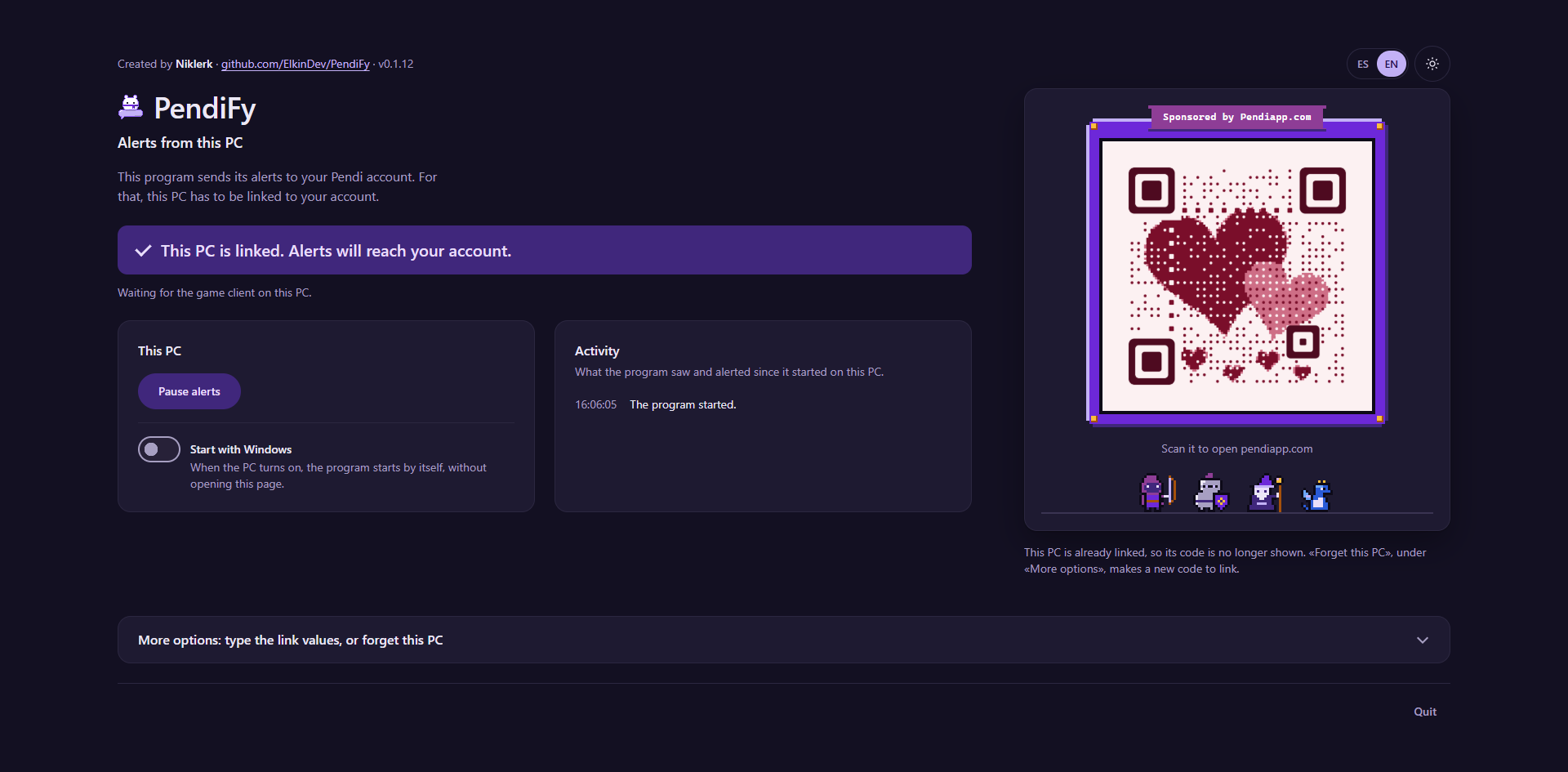
Un programa pequeño para Windows y Mac que avisa en tu teléfono cuando se encuentra tu partida y cuando empieza. Se enlaza una sola vez con tu cuenta de Pendi leyendo un código QR, sin crear ninguna cuenta nueva. Es gratis, no pide permisos de administrador y solo usa Python.
Nuevo: soporte para Mac. Funciona con el cliente de League of Legends y con la app de Teamfight Tactics para Mac, y en esa app acepta la partida por ti con un clic automático. Se instala con una línea en la Terminal: mira macOS.
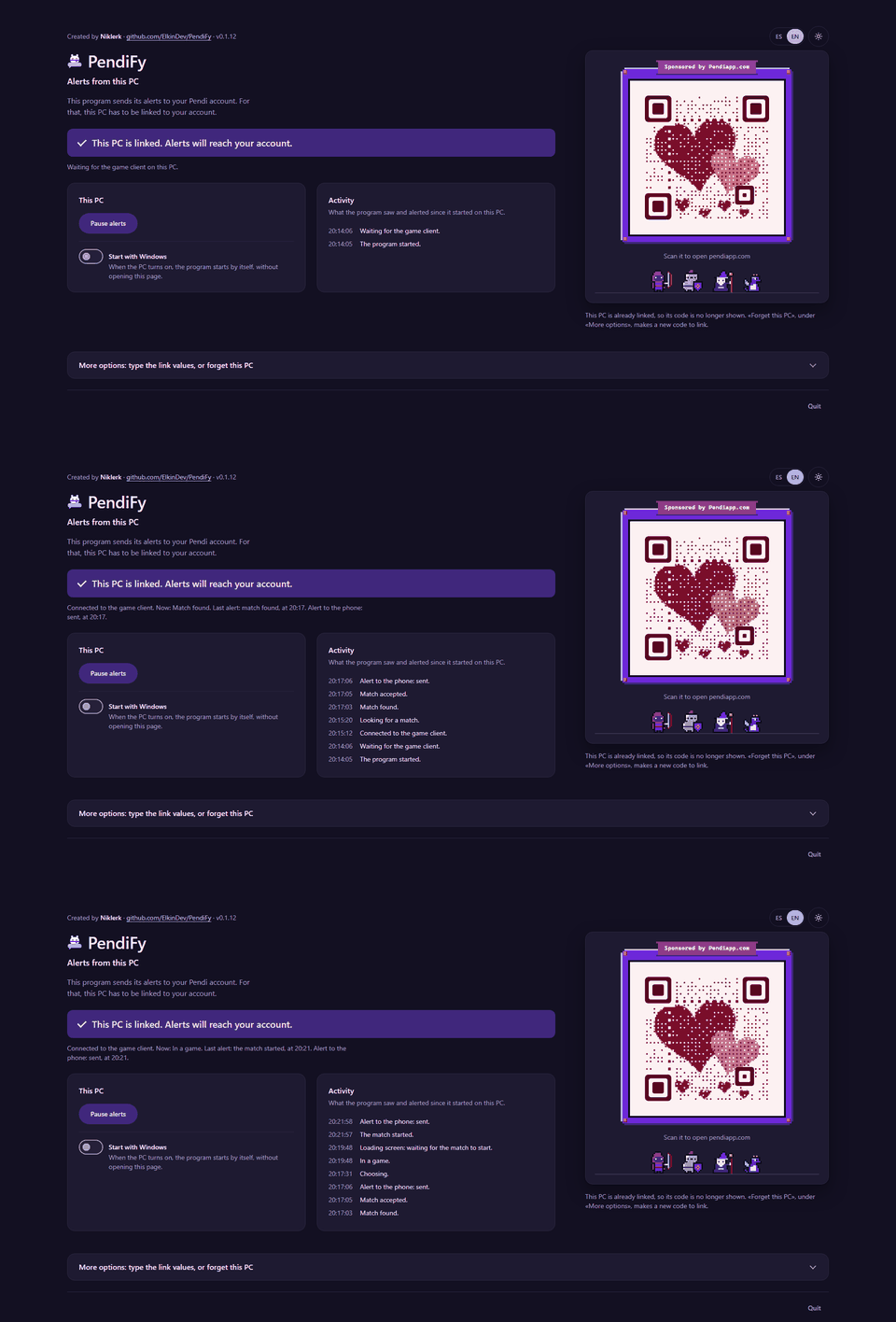
Así llega un aviso: el programa espera al cliente del juego, detecta la partida y envía el aviso a tu cuenta.
Pulsa Windows + R, pega esta línea completa y pulsa Enter. También sirve en PowerShell o en el Símbolo del sistema.
powershell -NoExit -NoProfile -ExecutionPolicy Bypass -Command "ri ~\pendify-install.ps1 -ea 0; irm https://raw.githubusercontent.com/ElkinDev/PendiFy/main/install.ps1 -OutFile ~\pendify-install.ps1; ~\pendify-install.ps1"La línea guarda el instalador como pendify-install.ps1 en tu carpeta de usuario y lo ejecuta desde ahí; puedes borrar ese archivo cuando termine. Si PendiFy ya está abierto, la línea instala la versión nueva y la copia nueva reemplaza a la anterior por sí sola.
La ventana queda abierta al terminar para que leas el resultado; ciérrala cuando acabe.
Si Windows dice que no puede acceder al archivo o el antivirus detiene la línea, no se instaló nada: actualiza las definiciones del antivirus y vuelve a intentarlo, o descarga install.ps1 desde la página del repositorio, haz clic en él con el botón derecho y elige «Ejecutar con PowerShell».
Si ves "'irm' no se reconoce como un comando interno o externo", pegaste solo la parte corta en el Símbolo del sistema: usa la línea completa de arriba.
El instalador busca Python 3.10 o más nuevo; si no lo hay lo instala con winget solo para tu usuario, o te indica https://www.python.org/downloads/ cuando winget no existe. Después instala PendiFy con pip, deja un acceso directo PendiFy en el Escritorio y en el menú Inicio, y lo inicia.
En PowerShell: para ver qué haría sin cambiar nada: $env:PENDIFY_DRYRUN = "1" antes de pegar la línea. Para no iniciarlo al final: $env:PENDIFY_NOSTART = "1".
Otra forma, sin ejecutar ningún script: si el PC ya tiene Python 3.10 o más nuevo, o si en él no se permite ejecutar scripts, instálalo con pip e inícialo:
python -m pip install --upgrade pendify
python -m pendify
Si Windows responde que no encuentra python, usa py en su lugar: py -m pip install --upgrade pendify y py -m pendify.
Así no se crean los accesos directos en el Escritorio ni en el menú Inicio, y el inicio con Windows queda en el interruptor de la página. Para actualizar, pulsa «Salir» en la página, ejecuta otra vez la misma línea de pip y vuelve a iniciarlo. Para quitarlo, apaga primero el interruptor «Iniciar con Windows» en la página, pulsa «Salir» y después ejecuta python -m pip uninstall pendify. La configuración en %APPDATA%\pendify, con el enlace con el teléfono, se queda; puedes borrar esa carpeta a mano.
El programa revisa PyPI cada seis horas y, cuando hay una versión más nueva, la instala en segundo plano. La página ofrece entonces «Reiniciar ahora» para empezar a usarla. Si la instalación falla, la página ofrece «Reintentar» en cualquier modo y, la primera vez que falla una versión, la siguiente revisión llega a los diez minutos. Para apagarlo, inícialo con --no-update o escribe "update": "off" en %APPDATA%\pendify\config.json. Las actualizaciones automáticas se instalan para tu usuario (--user).
PendiFy también funciona en Mac (Apple Silicon o Intel) con League of Legends / TFT instalado. Abre la app Terminal, pega esta línea y pulsa Enter:
curl -fsSL https://raw.githubusercontent.com/ElkinDev/PendiFy/main/install.sh | bashEl instalador busca Python 3.10 o más nuevo (si no lo hay y tienes Homebrew, instala python@3.12), instala PendiFy en su propio entorno en ~/Library/Application Support/pendify/venv, crea la app PendiFy en ~/Applications (la encuentras con Spotlight o en Launchpad) y la inicia. Para actualizar, vuelve a pegar la misma línea.
PendiFy desde Spotlight o Launchpad; si ya está abierto, abre su página.~/Library/Application Support/pendify/config.json; el registro del programa queda en pendify.log en esa misma carpeta.curl -fsSL https://raw.githubusercontent.com/ElkinDev/PendiFy/main/uninstall.sh | bash. Quita la app, el inicio con macOS y el entorno; la configuración se queda.Al iniciarse, el navegador abre una página local con un código QR. Escanéalo con la cámara del teléfono: se abre la app Pendi y te pide confirmar el enlace. La página muestra cuando el enlace quedó hecho.
El código QR y la clave están ocultos; se muestran durante un minuto al pulsar «Mostrar el código», y la página dice para qué sirve el código.
El botón de arriba a la derecha cambia entre el tema claro y el oscuro, y el programa guarda la elección para la próxima vez.
PendiFy, o pythonw -m pendify, que es lo que ejecuta el acceso directo; sin consola, si ya está abierto o no puede iniciarse te lo dice en una ventana. Para verlo en una consola: python -m pendify.pythonw.exe en el Administrador de tareas.powershell -NoExit -NoProfile -ExecutionPolicy Bypass -Command "ri ~\pendify-uninstall.ps1 -ea 0; irm https://raw.githubusercontent.com/ElkinDev/PendiFy/main/uninstall.ps1 -OutFile ~\pendify-uninstall.ps1; ~\pendify-uninstall.ps1" igual que la línea de instalación; deja pendify-uninstall.ps1 en tu carpeta de usuario, que puedes borrar. Quita el paquete del mismo Python que lo instaló, comprueba que ya no está, quita los dos accesos directos y quita el inicio con Windows si estaba encendido; la configuración en %APPDATA%\pendify se queda y te dice dónde está.Solo envía, al servicio de enlace de Pendi, el tipo de aviso (partida encontrada o partida empezada) junto con el identificador del enlace y el secreto de este PC, que viven en %APPDATA%\pendify\config.json. El servicio lo entrega a la cuenta que enlazaste. No envía tu nombre, tus partidas ni nada más del juego. Para saber cuándo empieza la partida lee el reloj del juego en este mismo PC, y no lo guarda ni lo envía. Si el juego no da su reloj, lee en su lugar el registro propio del juego en este mismo PC, solo la hora de dos clases de línea, y no guarda ni envía nada de él. Una vez empezada la partida, pregunta al cliente del juego una vez cada cinco segundos, solo para ver cuándo termina.
--dryCon --dry el programa solo avisa y no acepta la partida por ti.
Licencia: MIT
A small program for Windows and Mac that alerts your phone when your match is found and when it starts. It links once to your Pendi account by scanning a QR code, with no new account of any kind. It is free, needs no administrator rights and only uses Python.
New: Mac support. It works with the League of Legends client and with the Teamfight Tactics app for Mac, and in that app it accepts the match for you with an automatic click. It installs with one line in the Terminal: see macOS.
How an alert arrives: the program waits for the game client, detects the match and sends the alert to your account.
Press Windows + R, paste this whole line and press Enter. It also works in PowerShell or the Command Prompt.
powershell -NoExit -NoProfile -ExecutionPolicy Bypass -Command "ri ~\pendify-install.ps1 -ea 0; irm https://raw.githubusercontent.com/ElkinDev/PendiFy/main/install.ps1 -OutFile ~\pendify-install.ps1; ~\pendify-install.ps1"The line saves the installer as pendify-install.ps1 in your user folder and runs it from there; you can delete that file when it is done. If PendiFy is already open, the line installs the new version and the new copy replaces the older one by itself.
The window stays open at the end so you can read the result; close it when it is done.
If Windows says it cannot access the file or the antivirus stops the line, nothing was installed: update the antivirus definitions and try again, or download install.ps1 from the repository page, click it with the right button and choose "Run with PowerShell".
If you see "'irm' is not recognized as an internal or external command", you pasted only the short part into the Command Prompt: use the whole line above.
The installer looks for Python 3.10 or newer; when there is none it installs it with winget for your user only, or points you to https://www.python.org/downloads/ when winget is missing. Then it installs PendiFy with pip, leaves a PendiFy shortcut on the Desktop and in the Start menu, and starts it.
In PowerShell: to see what it would do without changing anything, set $env:PENDIFY_DRYRUN = "1" before pasting the line. To leave it stopped at the end, set $env:PENDIFY_NOSTART = "1".
Another way, with no script at all: on a PC that already has Python 3.10 or newer, or where scripts are not allowed, install it with pip and start it:
python -m pip install --upgrade pendify
python -m pendify
If Windows answers that python was not found, use py in its place: py -m pip install --upgrade pendify and py -m pendify.
This way leaves no shortcut on the Desktop or in the Start menu, and the start with Windows is the switch on the page. To update, press «Quit» on the page, run the same pip line again and start it again. To remove it, first turn off the «Start with Windows» switch on the page, press «Quit», then run python -m pip uninstall pendify. The configuration in %APPDATA%\pendify, with the link to the phone, stays; you can delete that folder by hand.
The program checks PyPI every six hours and, when a newer version exists, installs it in the background. The page then offers «Restart now» to start using it. If the install fails, the page offers «Try again» in either mode and, the first time a version fails, the next check comes ten minutes later. To turn this off, start it with --no-update or write "update": "off" in %APPDATA%\pendify\config.json. Automatic updates install for your user (--user).
PendiFy also runs on a Mac (Apple Silicon or Intel) with League of Legends / TFT installed. Open the Terminal app, paste this line and press Enter:
curl -fsSL https://raw.githubusercontent.com/ElkinDev/PendiFy/main/install.sh | bashThe installer looks for Python 3.10 or newer (with none and Homebrew present, it installs python@3.12), installs PendiFy in its own environment in ~/Library/Application Support/pendify/venv, makes the PendiFy app in ~/Applications (find it with Spotlight or in Launchpad) and starts it. To update, paste the same line again.
PendiFy from Spotlight or Launchpad; if it already runs, its page opens.~/Library/Application Support/pendify/config.json; the program's log is pendify.log in that same folder.curl -fsSL https://raw.githubusercontent.com/ElkinDev/PendiFy/main/uninstall.sh | bash. It removes the app, the start with macOS and the environment; the config is kept.When it starts, the browser opens a local page with a QR code. Scan it with the phone's camera: the Pendi app opens and asks you to confirm the link. The page shows when the link is done.
The QR code and the key are hidden; they show for a minute when «Show the code» is pressed, and the page says what the code is for.
Find threats in your stack.
OX Radar can check high-priority threats, like critical package CVEs, against your context.
Each incident is marked Detected or Not Detected with a remediation plan and proof all tracked in the Response Center.
The probe returned only these fields for this server — auth requirement, protocol and tool list weren’t observed, so they’re not shown (never guessed).
The publisher’s own links, as the registry reports them. These are not sources for the assessment on this page.