Scan your whole stack


From OX Research Newsroom








Latest version: v2026.11.24.0
HappyHorse by Ace Data Cloud was last scanned on 24 Nov 2026 at version 2026.11.24.0. Risk score 0 of 100. No malicious behavior was detected.
| Version | Published | Status |
|---|---|---|
| 2026.11.24.0 LATEST | 24 Nov 2026 | 1 rule fired |
| 2026.11.22.1 | 22 Nov 2026 | No rules fired |
| 2026.11.22.0 | 22 Nov 2026 | No rules fired |
| 2026.11.15.1 | 15 Nov 2026 | Not shown |
| 2026.11.15.0 | 15 Nov 2026 | Not shown |
Findings for v2026.11.24.0. The score is a capped sum of the weights of the rules that fired — not CVSS, not exploitability, and not a probability. It is not comparable across packages with different scan coverage.
An automated phrase check found wording such as "don't ask the user". It does not tell a skipped confirmation apart from an instruction to look something up instead of asking for it. Not reviewed by a person.
LOWThe score describes 2026.11.24.0; other versions have their own rules, not their own score.
The publisher’s own README, as collected from the registry.



Model Context Protocol server for Happy Horse AI video generation and editing through the Ace Data Cloud API.
Find the Ace-provided HappyHorse source listing or remote connector. Follow the Glama installation, API Token and first-use guide. Public discovery and a successful personal connection are separate checks; generation uses your Ace account balance.
Use the independent HappyHorse by Ace Data Cloud native goose plugin: install and API Token guide · 简体中文. It reuses this MCP server and does not imply goose Marketplace or default-provider inclusion.
Open HappyHorse in the official MCP Registry, expand the matching io.github.AceDataCloud entry, and use its Packages or Remotes installation information in a client that consumes MCP catalogs. This is the HappyHorse integration provided by Ace Data Cloud; it is not an endorsement by the model vendor. The Registry is a directory, not the app that runs a tool.
Search for mcp-happyhorse (or io.github.AceDataCloud/mcp-happyhorse) to locate the exact entry. The official Registry search currently matches server names; spaces in a display title do not create extra search aliases. If your client does not consume the catalog, use the client-specific connection instructions below and check Applications → General application for your token, service permissions, balance and current price. Keep the original task ID when checking asynchronous results.
The hosted endpoint is https://happyhorse.mcp.acedata.cloud/mcp. Choose one route for the MCP client:
| Route | When to use it | Credential setup |
|---|---|---|
| Hosted OAuth | The client supports remote MCP OAuth | Add only the URL, then sign in to AceDataCloud and approve access. No token needs to be pasted into client configuration. |
| Hosted API token | The client cannot finish OAuth, or you need an explicit integration credential | Send an AceDataCloud API token in the Authorization: Bearer … header. Keep it in a local secret store or environment variable. |
| Local stdio | The client runs a local MCP process | Install mcp-happyhorse and pass ACEDATACLOUD_API_TOKEN to that process. It still calls the AceDataCloud API. |
The hosted service advertises OAuth metadata and Dynamic Client Registration (DCR). DCR registers the client application; it is not an API key. OAuth signs you in and the client sends the resulting Bearer token; it may reuse or create an API credential for the account. Browser sign-in still requires an AceDataCloud account. The hosted service can be metered: review current service documentation and displayed pricing before a real operation. Do not configure both an OAuth login and a fixed Authorization header for the same server.
Customize → Connectors → Add custom connector, enter https://happyhorse.mcp.acedata.cloud/mcp, select sign-in, and choose Register automatically if Claude asks how to register its OAuth client. Complete consent. Claude Desktop's local claude_desktop_config.json is a separate setup. Claude connector guide.claude mcp add --transport http --scope user happyhorse https://happyhorse.mcp.acedata.cloud/mcp, then claude mcp login happyhorse. Check /mcp. Claude Code MCP guide.https://happyhorse.mcp.acedata.cloud/mcp. For a project, merge the entry below into <project>/.cursor/mcp.json; for personal use, use ~/.cursor/mcp.json. Cursor MCP guide.https://happyhorse.mcp.acedata.cloud/mcp, then finish the browser sign-in. New portable workspace configs use <project>/.mcp.json; the VS Code-specific format below uses <project>/.vscode/mcp.json or the user profile. Check MCP: List Servers. VS Code MCP setup.codex mcp add happyhorse --url https://happyhorse.mcp.acedata.cloud/mcp, then codex mcp login happyhorse. Its user settings are in ~/.codex/config.toml. Official Codex MCP guide.Cursor project config (OAuth):
{
  "mcpServers": {
    "happyhorse": {"url": "https://happyhorse.mcp.acedata.cloud/mcp"}
  }
}
VS Code-specific workspace config (OAuth):
{
  "servers": {
    "happyhorse": {"type": "http", "url": "https://happyhorse.mcp.acedata.cloud/mcp"}
  }
}Bearer. An API Key / API Token field expects this raw value; only a manually configured HTTP Authorization header needs the Bearer prefix. A platform-... account-management token cannot replace a generation API key.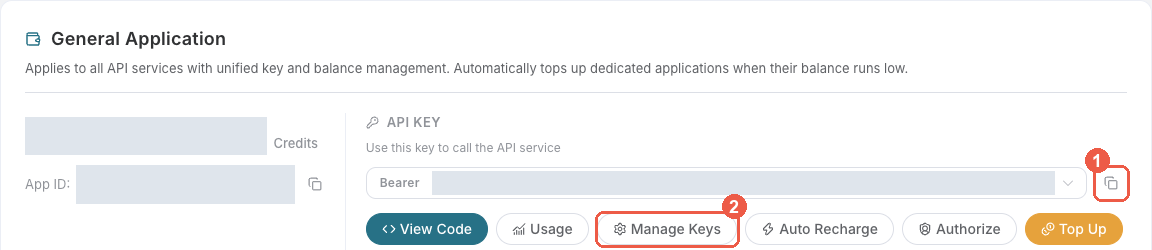
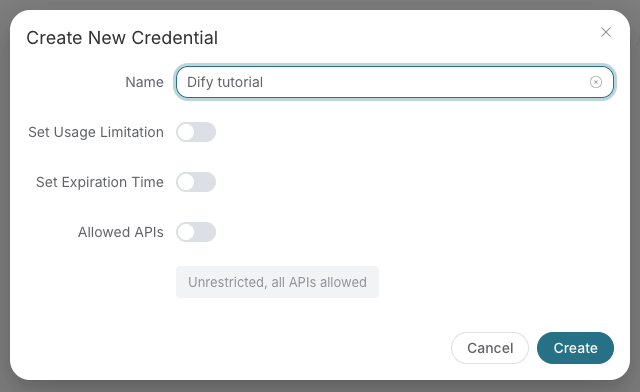
Save the key in the client's credential store or the environment variable shown below. Never put it in a prompt, shared workflow, screenshot, or Git commit. If authentication fails, check the full copied value, application/service access, expiration, usage limit, and balance before creating another key.
A fixed Bearer header bypasses OAuth. If the header is invalid, remove it before trying browser sign-in; keep the saved credential private.
For Claude Code, the shell expands the token when you add the server; treat the saved user MCP config as a secret:
export ACEDATACLOUD_API_TOKEN='YOUR_API_TOKEN'
claude mcp add --transport http --scope user happyhorse https://happyhorse.mcp.acedata.cloud/mcp \
  --header "Authorization: Bearer $ACEDATACLOUD_API_TOKEN"
For a Claude Code project config, put a variable reference in <project>/.mcp.json and set that variable in the environment that launches Claude Code:
{
  "mcpServers": {
    "happyhorse": {
      "type": "http",
      "url": "https://happyhorse.mcp.acedata.cloud/mcp",
      "headers": {"Authorization": "Bearer ${ACEDATACLOUD_API_TOKEN}"}
    }
  }
}
Cursor uses a different environment-variable syntax in ~/.cursor/mcp.json or an uncommitted project config:
{
  "mcpServers": {
    "happyhorse": {
      "url": "https://happyhorse.mcp.acedata.cloud/mcp",
      "headers": {"Authorization": "Bearer ${env:ACEDATACLOUD_API_TOKEN}"}
    }
  }
}
In VS Code, run MCP: Open User Configuration and merge this server plus its masked input; ${input:...} is for VS Code's user/workspace format and is not portable to the Agent Host .mcp.json format:
{
  "inputs": [
    {"id": "acedata-happyhorse-token", "type": "promptString", "description": "AceDataCloud API token", "password": true}
  ],
  "servers": {
    "happyhorse": {
      "type": "http",
      "url": "https://happyhorse.mcp.acedata.cloud/mcp",
      "headers": {"Authorization": "Bearer ${input:acedata-happyhorse-token}"}
    }
  }
}
For Cline, use its MCP configuration UI or CLI file ~/.cline/data/settings/cline_mcp_settings.json; its remote transport value is streamableHttp. For JetBrains AI Assistant, add a remote URL from Settings → Tools → AI Assistant → Model Context Protocol (MCP). For Zed, use a context_servers entry with the URL only for OAuth or add a local Bearer header. These clients have different configuration schemas; follow their current UI rather than copying another client's JSON. Cline · JetBrains · Zed.
Install the package and give the local process an API token:
python -m pip install mcp-happyhorse
export ACEDATACLOUD_API_TOKEN='YOUR_API_TOKEN'
mcp-happyhorse
For Claude Desktop local MCP, merge this entry into the file opened by its developer settings (~/Library/Application Support/Claude/claude_desktop_config.json on macOS). uvx requires uv on PATH:
{
  "mcpServers": {
    "happyhorse": {
      "command": "uvx",
      "args": ["mcp-happyhorse"],
      "env": {"ACEDATACLOUD_API_TOKEN": "YOUR_API_TOKEN"}
    }
  }
}
Keep this user-level file private. Self-hosted HTTP uses mcp-happyhorse --transport http --port 8000; expose it only with suitable network and TLS controls. Local execution still calls the AceDataCloud API.
https://happyhorse.mcp.acedata.cloud/health returning {"status":"ok"} checks endpoint reachability only.happyhorse_list_models is a reference tool; it does not verify downstream API access or balance.happyhorse_generate_video with your own valid input after reviewing current service documentation and displayed pricing. If the result contains a task ID, call happyhorse_get_task on that same ID until terminal success or failure. Do not resubmit the operation just to check progress.For 401, check which auth route the client used and whether the token or OAuth session is valid. A 403 may mean an account permission or content moderation failure; read the returned error. Insufficient balance and downstream service failures need their own diagnosis. A listed tool or submitted task does not prove a successful result.
| Tool | Purpose |
|---|---|
happyhorse_generate_video |
Generate a video from text |
happyhorse_generate_video_from_image |
Animate one first-frame image |
happyhorse_generate_video_from_references |
Generate from 1-9 reference images |
happyhorse_edit_video |
Edit a source video with up to 5 references |
happyhorse_get_task |
Query one task |
happyhorse_get_tasks_batch |
Query multiple tasks |
happyhorse_list_models |
List valid models for each action |
Generation tools submit asynchronously when no callback_url is supplied. Keep the returned
task_id, wait about 15 seconds, then call happyhorse_get_task until the response contains a
final video_url or terminal error.
| Action | Models | Default |
|---|---|---|
| Text-to-video | happyhorse-1.0-t2v, happyhorse-1.1-t2v |
happyhorse-1.1-t2v |
| Image-to-video | happyhorse-1.0-i2v, happyhorse-1.1-i2v |
happyhorse-1.1-i2v |
| Reference-to-video | happyhorse-1.0-r2v, happyhorse-1.1-r2v |
happyhorse-1.1-r2v |
| Video edit | happyhorse-1.0-video-edit |
happyhorse-1.0-video-edit |
Generation duration is 3-15 seconds. Supported resolutions are 720P and 1080P. Text and
reference generation support 16:9, 9:16, 1:1, 4:3, and 3:4. Image-to-video follows the
input image ratio. Video-edit duration follows the source video.
Ask your MCP client:
Generate a 720P, 9:16 video of a white horse crossing a snowy ridge at sunrise.
Animate https://example.com/horse.jpg with a slow camera push and wind moving the mane.
Edit https://example.com/source.mp4 to preserve the camera motion but apply the costume style from https://example.com/reference.jpg. Keep the original audio.
Not yet probed. This server declares a remote endpoint but we have not observed it, so nothing below is known either way.
Find threats in your stack.
OX Radar can check high-priority threats, like critical package CVEs, against your context.
Each incident is marked Detected or Not Detected with a remediation plan and proof all tracked in the Response Center.
The probe returned only these fields for this server — auth requirement, protocol and tool list weren’t observed, so they’re not shown (never guessed).
The publisher’s own links, as the registry reports them. These are not sources for the assessment on this page.