Scan your whole stack


From OX Research Newsroom




Are you using assetcat?
Find out what’s in your code.
Scan your apps free in minutes (opens in a new tab) Read the latest findings
Latest version: v1.1.0
assetcat was last scanned on 28 Nov 2026 at version 1.1.0. Risk score 0 of 100. No malicious behavior was detected.
| Version | Published | Status |
|---|---|---|
| 1.1.0 LATEST | 28 Nov 2026 | No rules fired |
| 1.0.2 | 13 Nov 2026 | No rules fired |
| 1.0.1 | 9 Nov 2026 | No rules fired |
| 1.0.0 | 9 Nov 2026 | Not shown |
Findings for v1.1.0. The score is a capped sum of the weights of the rules that fired — not CVSS, not exploitability, and not a probability. It is not comparable across packages with different scan coverage.
The score describes 1.1.0; other versions have their own rules, not their own score.
The publisher’s own README, as collected from the registry.
If you've collected game assets for a while (Humble bundles, Kenney's all-in-1, itch.io and store packs), you probably have hundreds of packs and hundreds of thousands of files, and no good answer to "do I own a pixel-art dungeon tileset, may I use it commercially, and is it AI-generated?"
assetcat indexes a library like that and lets you browse it in a local web UI or search it
from the command line. What you know about the library (each bundle's license, whether a pack
is human-made and why you believe so, notes, tags, shortlists) lives in plain TOML files next
to the library, so it syncs with it, diffs cleanly and survives any rebuild of the index.
To see it in action, watch the video walkthrough. The story behind it (why I built it and how it works with local AI) is in this GammaVibe post.
item_37.png and pack pages list what a pack contains.style:pixel-art, perspective:top-down), so you can filter by them.
You can remove or add tags with one click, and your changes survive any re-run.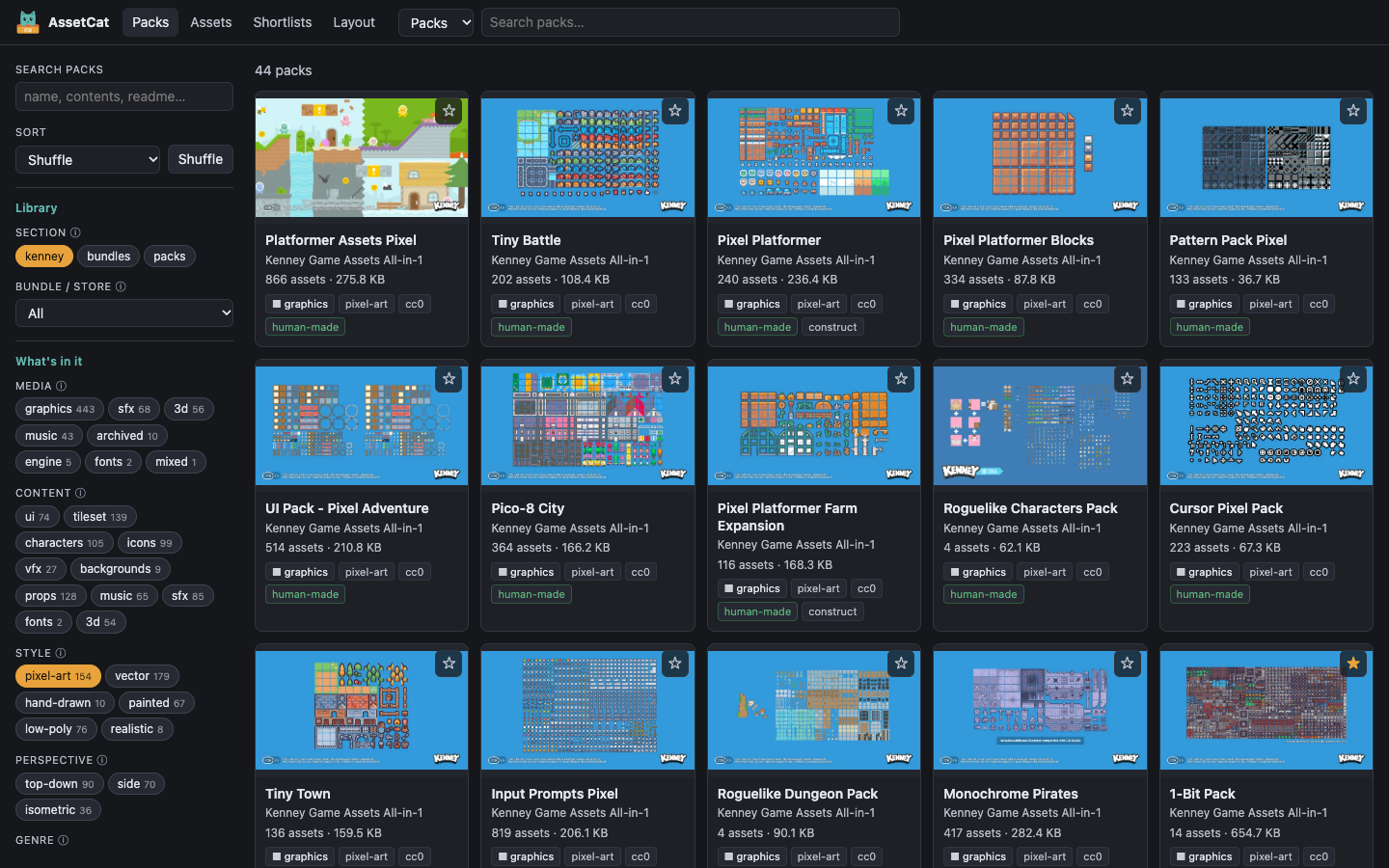
Expectations: AssetCat was built for one real library first (bundles, store packs and Kenney) and is generalized as other libraries show up. Yours will probably need a few corrections to how folders become packs, which the browse UI lets you make. If something doesn't work for your library, please open an issue.
Contributing: I'm not taking pull requests for now, so the code stays consistent as it evolves. Feature requests are very welcome: open an issue describing what you need, ideally with a draft prompt for a coding agent that would build it.
With uv (it fetches Python 3.12+ if you don't have it):
uv tool install assetcator try it without installing: uvx assetcat --help. pipx install assetcat and pip install assetcat (Python 3.12+) work too. The latest unreleased version:
uv tool install git+https://github.com/digitalhobbit/assetcat. Runs on macOS, Windows and Linux.
assetcat init ~/Assets      # 1. the folder that holds your asset folders
assetcat index              # 2. read the library (the first run takes a few minutes on a big one)
assetcat serve --open       # 3. browse it at http://127.0.0.1:8765/
init looks at your top-level folders, guesses a layout, and writes a profile folder in
<library>/assetcat/. It prints what it guessed; read it, and adjust catalog.toml in the
profile if a section looks wrong (see How folders become packs).index reads every file's header (sizes, frames, durations, fonts, readme text), finds
sprite sheet grids and duplicates across bundles, and renders a contact sheet per pack.
Later runs only read what changed, so re-run it whenever you add assets.assetcat doctor to see what's left to do. Each problem comes with how to fix it.A pack page shows the pack's tags, previews, readme and license, where its license and AI status come from, what its images show, and its files by folder:
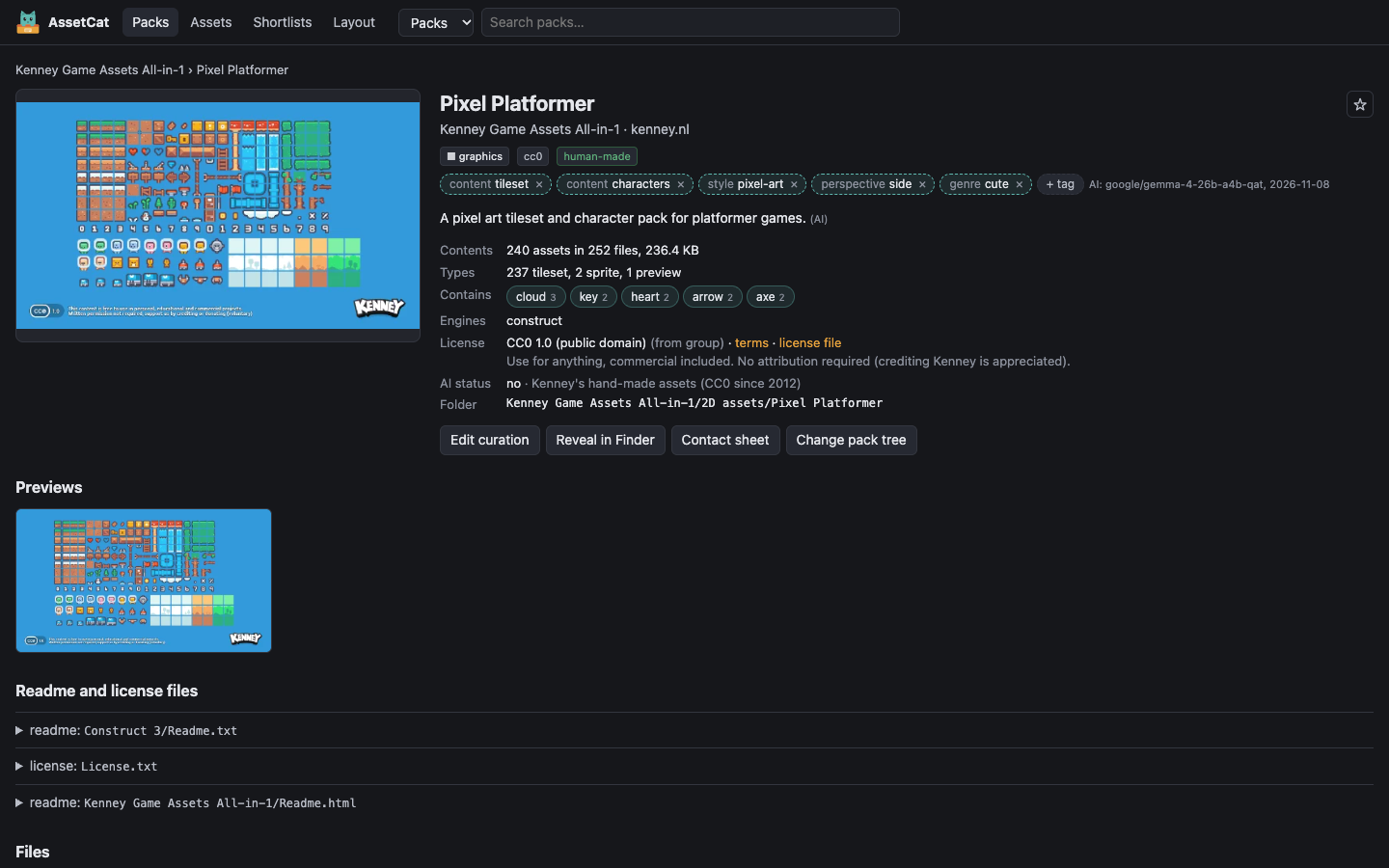
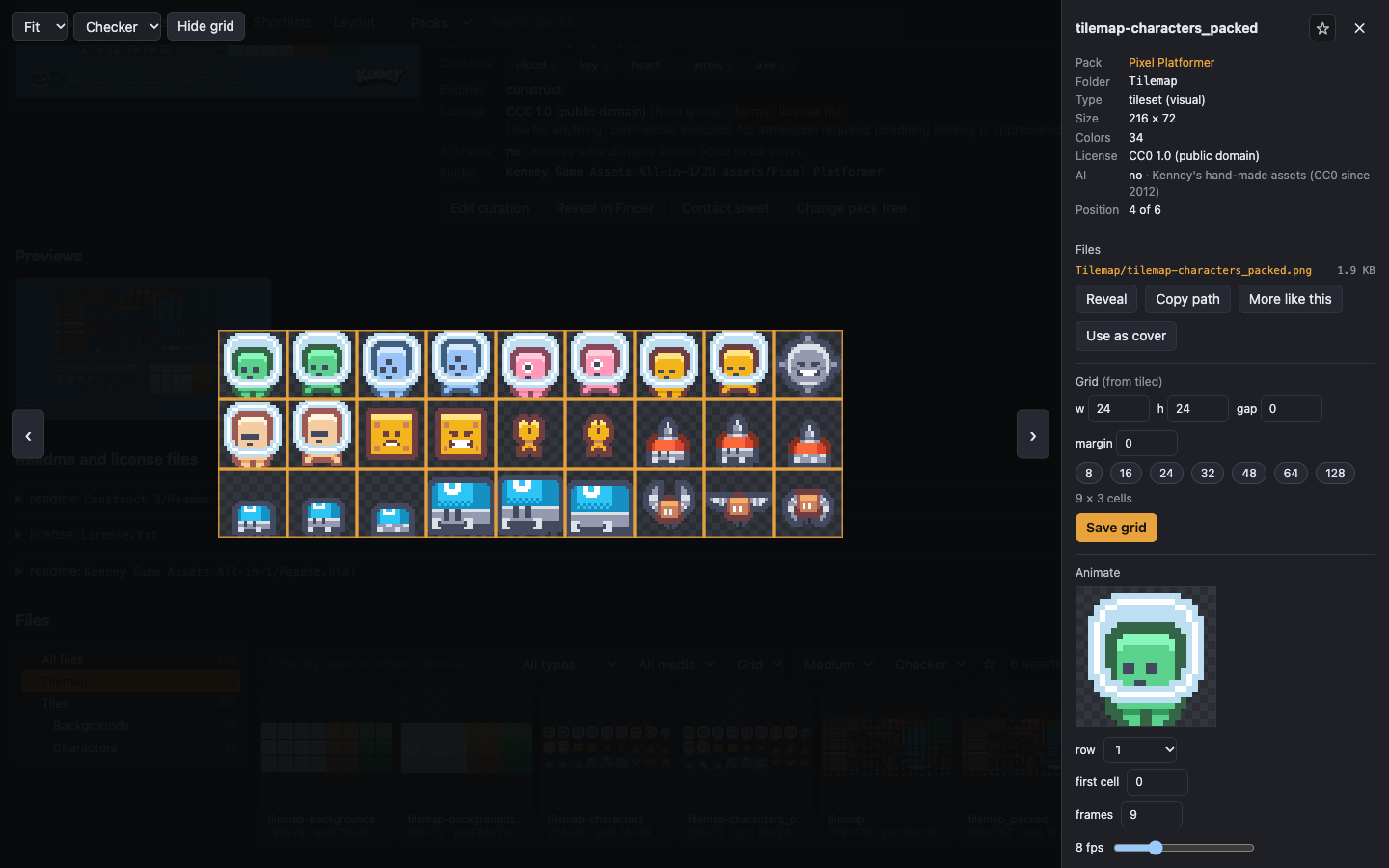
The viewer scales pixel art by whole numbers, overlays the sheet's grid (read from Tiled, atlas or Kenney files or a size in the file name, or set by you) and plays a row as an animation:
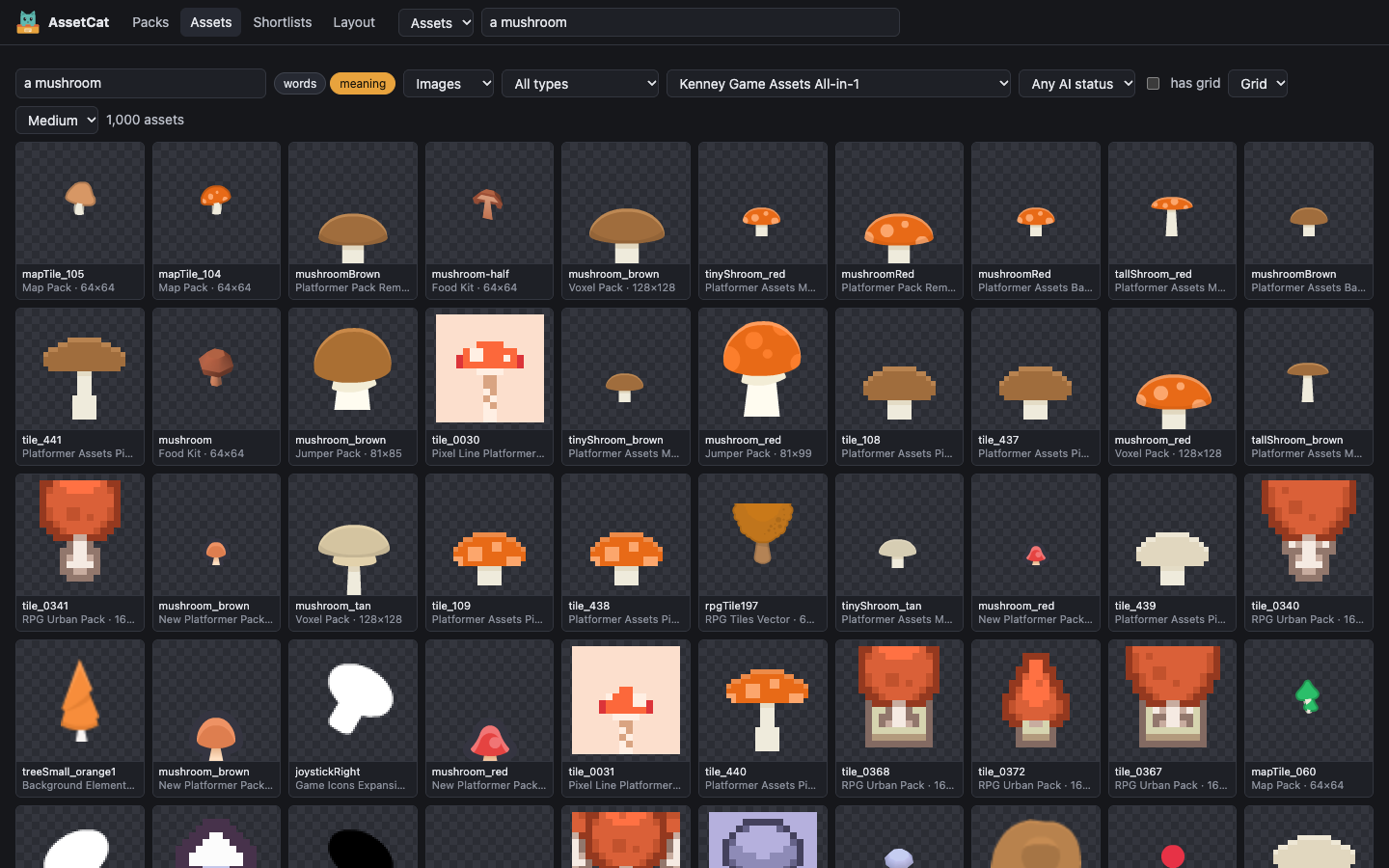
Asset search covers the whole library, filtered by type, media, bundle and AI status. Search by words, or by meaning to find images by what they show:
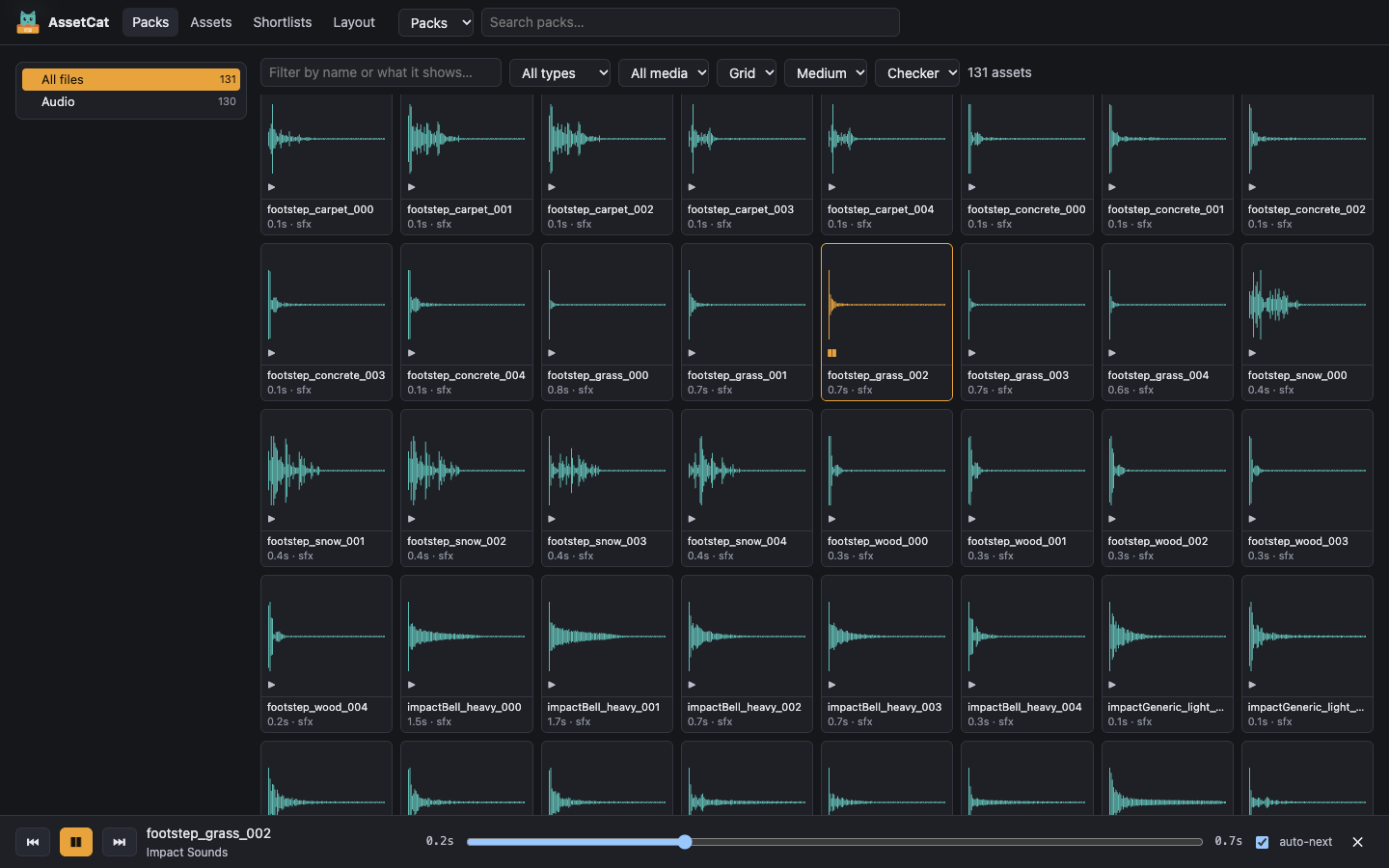
Sound and music show as waveforms. Click one to play it in the player bar, which can go on to the next one by itself (auto-next):
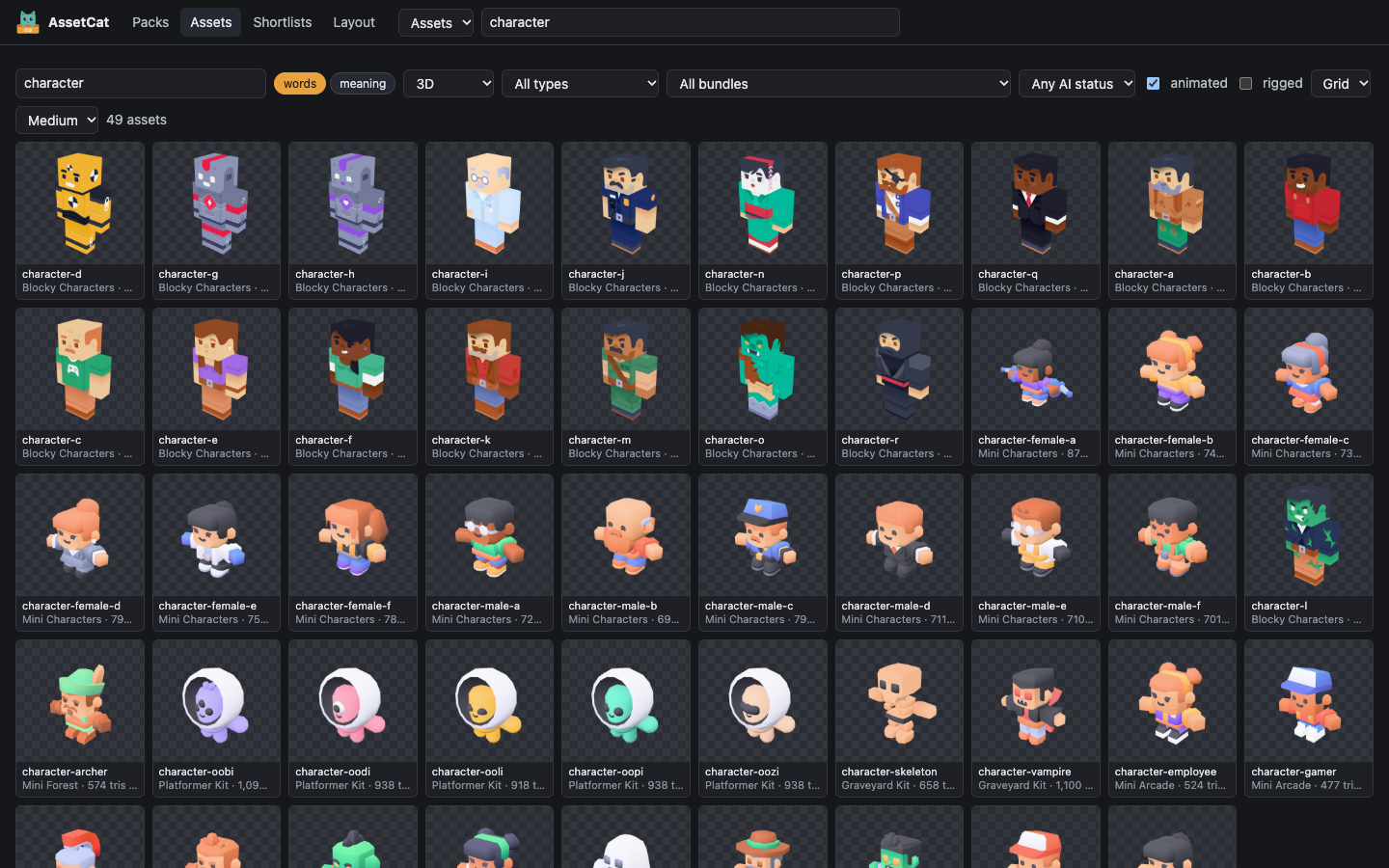
3D models (glTF/GLB, OBJ, and FBX on a best-effort basis) show as rendered tiles. The viewer lets you turn a model around, switch between its formats and play its animation clips. Search can narrow 3D models to animated or rigged ones:
Star packs, folders or single assets to collect them in shortlists (plain TOML in the profile), for example to hand a set of candidates to Claude in a game project.
The profile's catalog.toml lists sections, one per top-level folder:
[[sections]]
name = "bundles"
folder = "Bundles"
layout = "groups"            # each folder inside is a group (a bundle or a store) holding packs

[[sections]]
name = "kenney"
folder = "Kenney Game Assets All-in-1"
layout = "single-group"      # the whole section is one group...
pack_depth = 2               # ...with packs at <category>/<pack>
Inside a group, every folder gets a role:
Graphics/, Audio/); its sub-folders are looked at for packs.AssetCat guesses roles from folder names and contents (previews, readmes and licenses mark a pack). When it guesses wrong, the Layout page in the browse UI shows each group's folders with their roles; change one and the tree below shows the result before you save. Roles are saved in the group's curation file, and the page re-indexes to apply them.
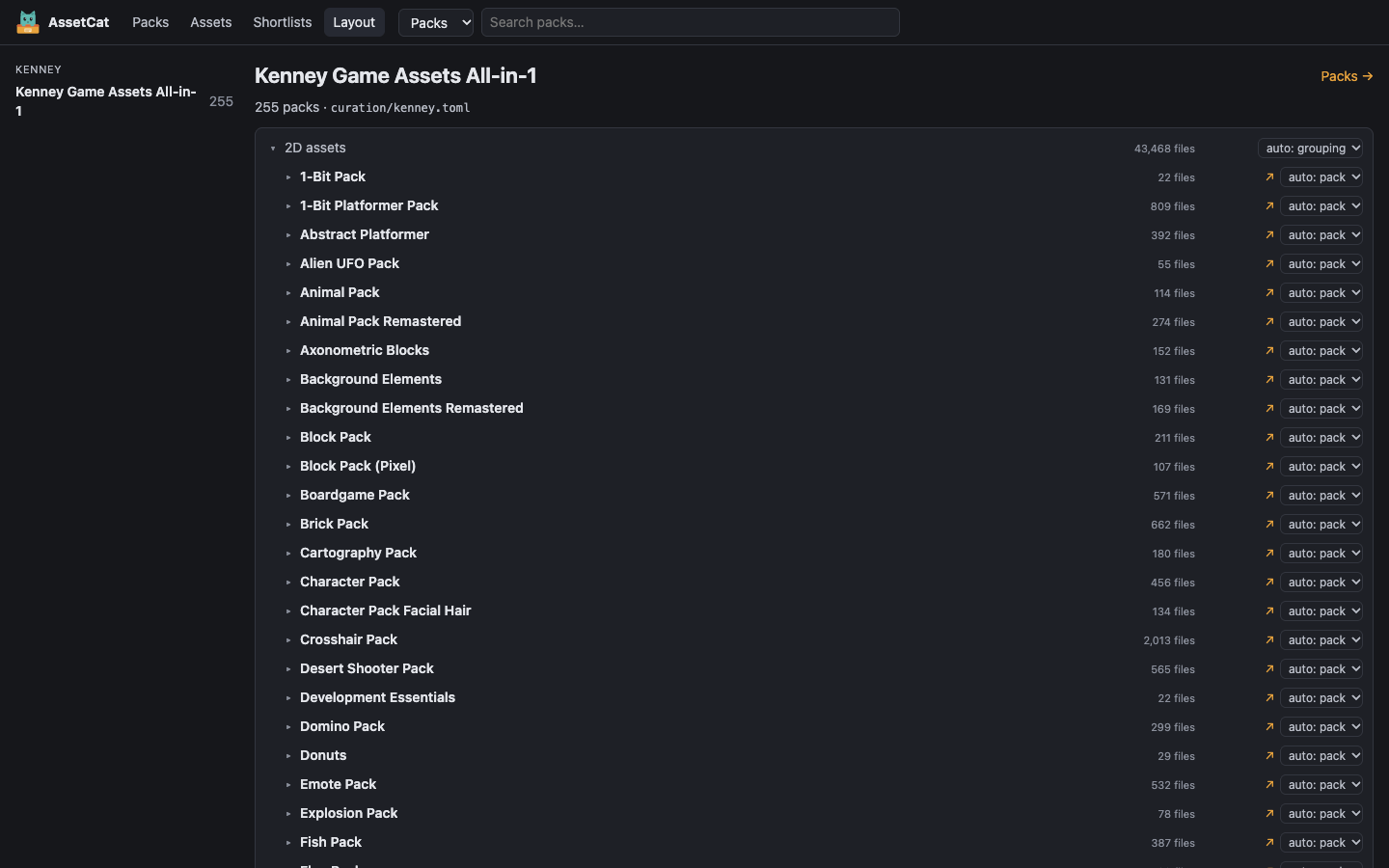
index creates one curation file per group in the profile's curation/ folder. Edit it in the
browse UI (which keeps your comments and formatting) or by hand:
store = "Example Store"
purchased = 2020
license = "cc-by-4"                 # a key in licenses.toml
ai_generated = "no"                 # yes | no | unknown
ai_reason = "Released in 2017, before generative art tools"

[packs."graphics/forest-tiles"]     # per-pack overrides, keyed by folder (the Layout page shows keys)
license = "cc0"
tags = ["forest", "pixel-art"]
cover = "Preview/cover.png"
grid = { "tiles/forest.png" = [16, 16] }
Values inherit: a pack takes its group's license and AI status unless it sets its own, and the
packs inside a collection inherit from the collection. licenses.toml holds your license table
(CC0, CC BY and a few common store licenses to start with); add one entry per license you own
assets under. Its summaries are reminders, not legal advice: check the terms that came with your
purchase before you ship.
ai_generated = "no" is the claim "a human made this", and ai_reason is why you believe it:
the release date, the artist, the store's policy. With storefronts asking about AI content and
players caring, that reason is worth writing down while you still remember it.
assetcat classify shows each pack to a vision-language model running on your machine and
stores the tags it answers with in the profile. For each pack, the model gets the cover and
contact sheet, plus what the index knows: the pack's name, folders, file formats and image sizes,
and an excerpt of its readme. It answers only with values from the profile's tags.toml, which
you can extend. With the recommended model, a pack takes about 4 seconds on an M4 Pro Mac (850
packs in about an hour), and later runs only tag packs that are new or changed.
It talks to any OpenAI-compatible server. The simplest is LM Studio:
lms server start.assetcat config ai_model google/gemma-4-26b-a4b-qat # once per machine
assetcat classify --sample 10 # print tags for 10 random packs
assetcat classify # everything new; stop and resume anytimeassetcat classify does both AI passes: the image vectors for search by
meaning and the pack tags. Neither needs the other, and each only does what's
new. A pass that isn't set up on this machine (no tag model, the LM Studio server not running, or
no ai extra) is skipped with the reason. --kind tags or --kind embed runs just one.
| Model | Download | Notes |
|---|---|---|
| Gemma 4 26B-A4B, QAT 4-bit | ~16 GB | Recommended. Best at telling pixel art, vector and 3D apart; ~3.5 s per pack on an M4 Pro |
| Gemma 4 E4B | ~5 GB | For machines with 16 GB of memory or less. Faster, but gets style wrong more often |
Other models and servers work too: any model that takes images (a "vision" model) and a server
with an OpenAI-compatible API, such as Ollama (assetcat config ai_url http://127.0.0.1:11434/v1), llama.cpp's server or a cloud API (put the key in
ASSETCAT_AI_KEY). Use --sample to see how a model does on your packs before a full run.
Each model's results are kept apart (ai/<model>/ in the profile), and the newest result per
pack is the one shown.
AI tags show dashed on the pack page; yours are solid. Removing an AI tag records it in the
curation file (tags_remove), and adding one records it in tags, so a re-run never undoes your
edits. Both work at bundle level too, by hand: tags_remove = ["genre:fantasy"] on a group
removes that tag from all its packs. Changing tags.toml marks the earlier tags outdated, and
the next classify redoes them.
assetcat classify (or classify --kind embed, for just this part) runs an image-text model
(Google's SigLIP 2) over every image and stores one vector per image in the profile. Then you can search by description, in the
browse UI (switch the asset search from words to meaning) or from the command line, and find
images that look like a given one:
uv tool install --force "assetcat[ai]"     # adds PyTorch
assetcat classify --kind embed            # the model downloads on first use (~1.5 GB, shown)
assetcat search --meaning a slime monster --type character,sheet
assetcat search --similar "Kenney Game Assets All-in-1/2D assets/Tiny Dungeon/Tiles/tile_0100.png"
Describe what you want in a few words, style included: "a pixel art slime monster" finds more than "slime". Sprite sheets and animation strips are searched by their frames, not as a whole.
The model runs inside AssetCat, no server needed. It uses an NVIDIA GPU or Apple Silicon when there is one, and the CPU otherwise (much slower). On an M4 Pro Mac it does about 115 images a second, so about 200,000 images take half an hour; duplicates are done once, and later runs only add new images. On Windows, PyPI's PyTorch is CPU-only; for an NVIDIA GPU, install the CUDA build instead, which uv picks to match your driver:
uv tool install --force --torch-backend auto "assetcat[ai]"classify --kind embed says which device it uses ("... on cuda").
The default model is google/siglip2-base-patch16-256. Larger SigLIP 2 models
(siglip2-large-patch16-256, siglip2-so400m-patch16-256) find a little more on hard queries
and take 3-4 times as long: assetcat config embed_model <name>, then classify --kind embed
again. Vectors are kept per model, about 350 MB for 200,000 images.
Subjects. The same vectors also say what an image shows: each image is scored against "a
potion", "a sword" and the rest of the subject list in tags.toml (about 130 common game
subjects). Subjects above a confidence threshold are added to word search, shown in the image
viewer ("Shows: bread 43%") and counted per pack ("Contains: bottle 4, bread 3, apple 2"). It's
cautious on purpose: about one image in ten gets a subject, and tiny tiles rarely do. Add your own
subjects to the list and run classify --kind embed again; it re-scores the stored vectors in
seconds without reading any images. A threshold change only needs assetcat index. "More like
this" needs only the stored vectors; searching by a typed description also needs the model (and
the ai extra) on the machine you search on.
<library>/assetcat/
├── catalog.toml        sections, junk file names, grouping folder names
├── licenses.toml       your license table
├── tags.toml           tag vocabulary: what `classify` may answer, which tags are filters
├── curation/           one TOML file per group: license, AI status, notes, tags, pack overrides
├── shortlists/         lists of packs, folders and assets starred in the browse UI
└── ai/                 AI results, one folder per model (written by `classify`)
Everything you decide lives here. The index (a SQLite database), thumbnails and contact sheets
go in your OS cache folder, never in a synced folder, and can be deleted any time:
assetcat index rebuilds them.
All read commands take --json. --library and --profile override the configured paths.
Find threats in your stack.
OX Radar can check high-priority threats, like critical package CVEs, against your context.
Each incident is marked Detected or Not Detected with a remediation plan and proof all tracked in the Response Center.
The probe returned only these fields for this server — auth requirement, protocol and tool list weren’t observed, so they’re not shown (never guessed).
The publisher’s own links, as the registry reports them. These are not sources for the assessment on this page.
Read the latest findings