niri-desktop-continuity


Reopen your niri desktop after a real reboot—for example,
to start a new kernel. Supported windows reopen on their workspaces, in their columns, at their
widths. Coding-agent conversations in Ghostty resume by id in new processes.
Windows it knows it cannot reopen safely, such as X11 apps and agent tabs without a known session,
stay closed and are reported. This reconstructs a desktop; it does not restore process memory.
It is a single command-line tool built on Python's standard library. Once you opt in, it saves your
desktop every 15 minutes and reopens it at login. It runs no daemon and makes no network requests.
Alpha, for niri on Linux only.
Video tour
Planned reboot. Sudden blackout. A way back.
Watch the 52-second tour
— MP4, no audio, fabricated demo desktop. Click the preview above or this link to open the video.
The snapshot saves desktop layout and reopen recipes, not the OS or application memory. You install
the OS updates with your normal tools; this tool reopens your desktop afterward. Or the power cuts
out while you are working: a usable snapshot saved beforehand can provide a way back after boot.
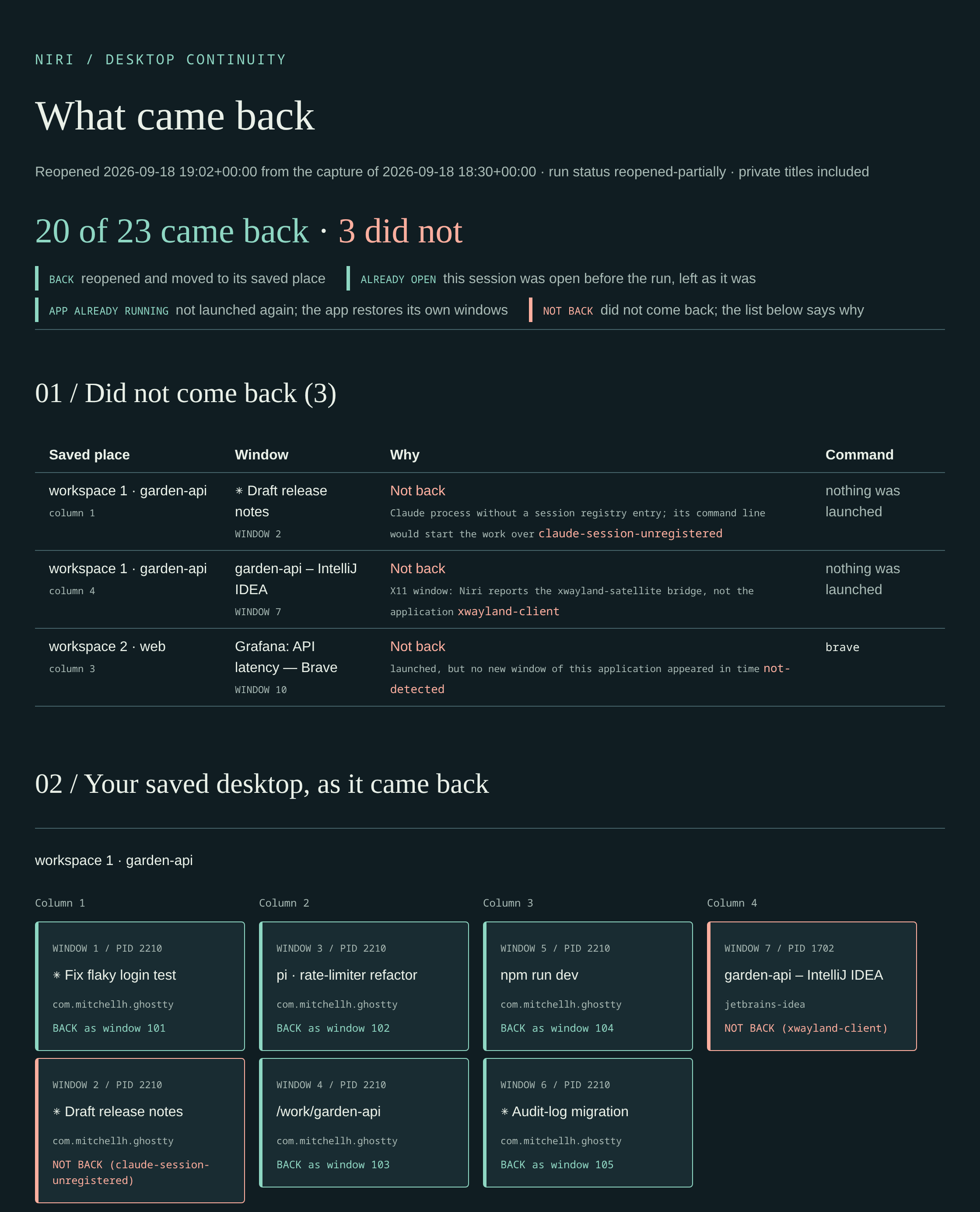
The preview shows the page that opens when the reopen is over. Thunderbird had started itself,
Brave reopened two of its three windows, and the two windows that are never replayed stayed
closed.
Why not suspend or hibernate?
If you only want to stop using the computer and later continue the same running system, use
suspend or hibernate
when supported and working on your machine. They preserve the running session, including
application memory that this tool cannot recover. Hibernation can power the machine off; powering
off alone is not a reason to use this tool.
This tool is for a fresh session after a real reboot, such as booting a new kernel, or reopening
captured windows after session loss. Hibernation resumes the old system; it does not perform that
fresh start. This tool launches new processes, resumes recorded agent conversations and rebuilds
window placement. Applications recover their own tabs and documents; unsaved drafts, terminal
scrollback and in-memory jobs are not restored. It can complement hibernation, not replace its
memory preservation.
After a crash or unexpected power cut, reopening needs a usable capture saved before the loss,
a surviving disk and snapshot, and an OS that boots. Changes since the last successful capture may
be lost; this tool does not repair a damaged OS or disk. Completed hibernation and hybrid sleep
can also survive power loss; ordinary suspend-to-RAM cannot if RAM loses power. The distinction
is recovery after an unplanned loss while working, not a claim that only this tool handles outages.
What comes back
| Window |
How it reopens |
| An application |
Launched once per saved instance, from your own route, its desktop entry or its saved command line. New windows with its app ID fill the saved places. |
| Claude Code in Ghostty |
claude --resume <id>, in the session's directory |
Antigravity CLI (agy) in Ghostty |
agy --conversation <id>, in the session's directory |
| Pi in Ghostty |
Pi's own resume command for that session (needs a Pi extension, see Agent sessions) |
| nodecode in Ghostty |
The resume command nodecode recorded for its session (nodecode 0.1.5 and later); without a record, like any other command |
Codex, or another agent whose SessionStart hook passes its session id |
The session it announced through hook |
| A command in a Ghostty tab |
The same command, started again (btop, just dev) |
| A shell in a Ghostty tab |
A shell in the same directory |
| An X11 window, or an agent tab in Ghostty with no known session |
Not reopened; the preview and the plan say why |
Applications restore their own content. Tabs, documents and drafts are theirs to bring back.
Requirements
- Linux with niri, and a systemd user session for the automatic save and reopen.
- Python 3.11 or newer. There are no third-party runtime dependencies.
xdg-open (xdg-utils), to open the result page. Without it the page is still written.- Ghostty, for terminal tabs and the sessions in them. Other terminals reopen as ordinary
applications; see Limits.
Install
pipx install niri-desktop-continuity
# or: uv tool install niri-desktop-continuity
Releases since 0.1.2 are also on
GitHub, with SHA256SUMS. What changed is in the
changelog.
Quick start
1. Save once and look at what would come back.
niri-desktop-continuity capture
niri-desktop-continuity preview    # prints the path of an offline HTML page; open it in a browser
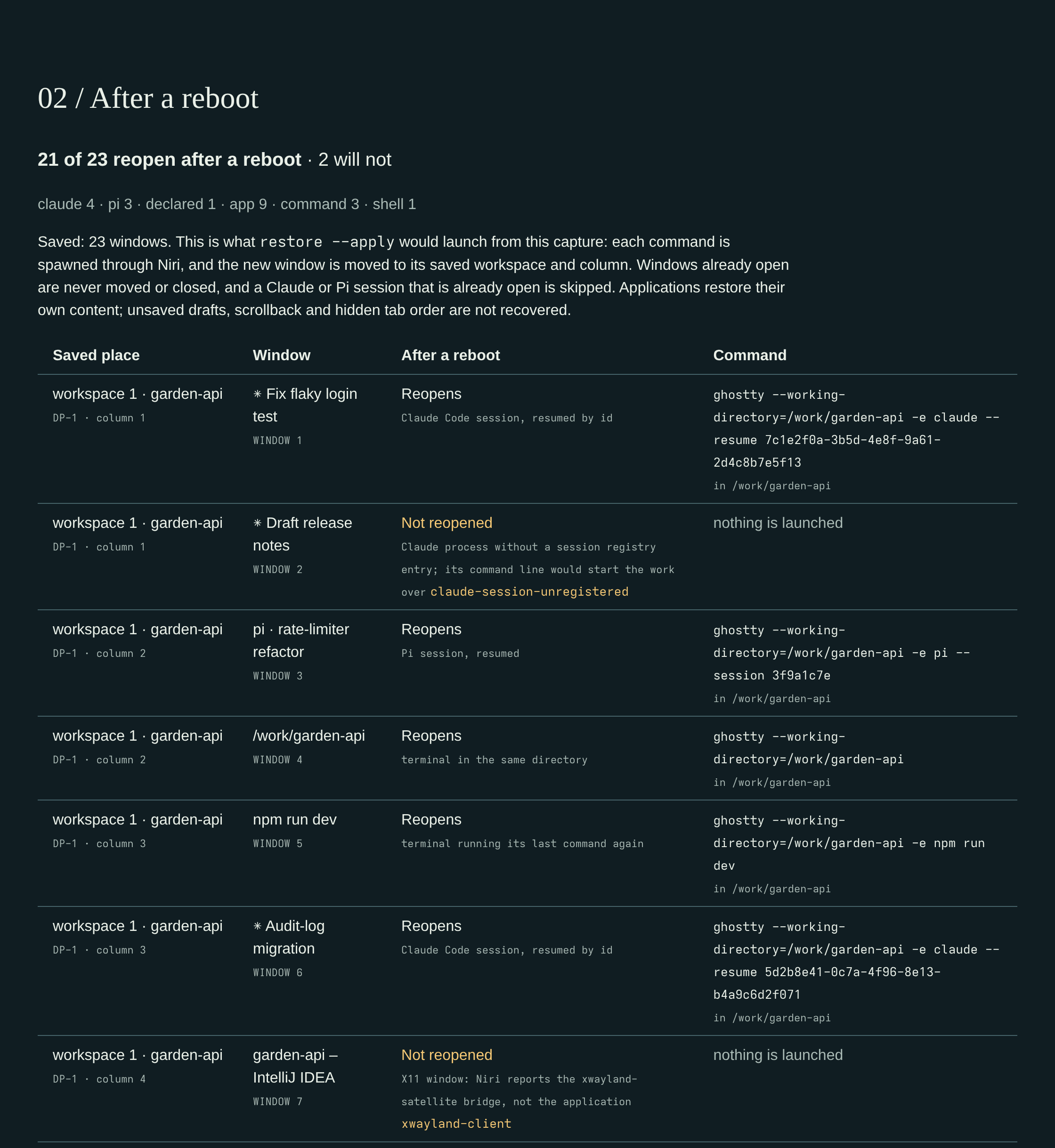
The page's After a reboot section lists every saved window with its saved reopen recipe (kind,
command and directory) or the reason it will not reopen. Your routes and desktop entries can change
the command that actually runs; restore without --apply shows the plan for the current desktop.
2. Turn on the automatic save and reopen.
niri-desktop-continuity autostart --enable --keep-days 3
This writes three systemd user units and starts the timer. The timer captures every 15 minutes and
keeps the captures of the 3 most recent days that have any, plus every capture a receipt or pointer
still names. The restore service reopens at login. autostart alone shows whether the units are
installed and enabled; autostart --disable removes them and keeps your captures.
3. Reboot. Before a planned reboot, save the last few minutes too:
systemctl --user start niri-desktop-continuity-capture.service
At login the restore service waits for niri, and for you to unlock if the session is locked, then
reopens your latest capture. Keep your hands off the keyboard and mouse until the run is over: niri
has no atomic focus-and-move, so input during the run can send a column to the wrong place. When it
is over, its result page opens; if none opens, the journal below says why.
Start working at login, reopen later
If you want the keyboard immediately, opt in to deferred login instead of automatic reopen:
niri-desktop-continuity autostart --enable --defer-restore --keep-days 3
At login the service selects and retains the previous capture. It does not launch apps, move
windows, open a report, or wait to act when you become idle. Periodic capture still runs. After login, use the short command (uppercase on Linux):
NDC restore           # preview this login’s retained desktop; launches nothing
NDC restore --apply   # reopen it when ready to stay idle
This is the same restore engine as niri-desktop-continuity restore --from-login. Without a
digest the manual short command requires the matching successful systemd user-service invocation,
boot and Niri compositor; it refuses stale or missing evidence instead of using the latest timer
capture. An explicit digest still selects exactly that capture. The long command’s existing default
has not changed. For a non-default store use NDC --state-root PATH restore.
For older unbound captures or to inspect the source manually, look for
"status": "deferred" and its snapshot_digest in this boot’s service output:
journalctl --user -b -u niri-desktop-continuity-restore.service -o cat
Copy that exact digest. Later, substituting it for DIGEST, run:
niri-desktop-continuity restore DIGEST             # see what would reopen now
niri-desktop-continuity restore DIGEST --apply     # only when you can stay idle
Use the same --state-root before restore if you set one. New timer captures can change the
latest snapshot, so do not omit the digest. Only the most recent successful deferral has a
retention pointer; a later deferral can replace it. A skipped or failed login does not offer a
new digest. Manual apply checks the chosen capture and current desktop again; a missing or corrupt
capture is refused, not substituted. It can still activate an existing application. Stop typing
and opening windows during apply. To switch back to exact automatic login, enable autostart again
without --defer-restore and repeat your desired retention and interval settings.
After a reboot: what happened
When the run is over, it opens its result page in your browser with xdg-open: that is your sign
that the run has ended. It says how many windows came back, lists every window that did not with the
reason, and shows your saved desktop with each window marked BACK, ALREADY OPEN (a session that
was open already), APP ALREADY RUNNING (not launched again; the app restores its own windows) or
NOT BACK. A run that was refused or skipped, for example because the capture came from the niri
that is running now, writes no page; the journal below says why. The image at the top of this
README is such a page.
For a manual restore where workspace placement is enough, restore --apply --workspace-only
skips column order, sizes, stacking, floating placement, workspace renaming and final refocus. It
writes the result page without opening it. Login still uses exact placement by default. This is
not a background-safe mode: an app may take focus when launched, and Niri does not distinguish a
window you open from a restore window of the same app. Wait until restore finishes to start working.
restore --apply --no-open keeps exact placement but writes the page without opening it. To write it again for the latest run,
or for any run by its receipt digest:
niri-desktop-continuity preview --kind receipts # prints the path of the page
The journal has the run in full:
journalctl --user -b -u niri-desktop-continuity-restore
A run that got as far as reopening prints its receipt, with the page's path as report, and a copy
is kept with your captures. The receipt's status is reopened when nothing failed and
reopened-partially when some windows did not come back. Each window has its own status, for
example placed, already-running or not-detected, and a refused window also has a reason.
A partial run exits with status 2, so systemd shows the unit as failed. One refused window is
enough, such as an agent tab with no announced session; windows of applications that were already
running count as done. Exit status 2 also means a refused or interrupted run, and the journal says
which.
When the latest capture is unusable because it saw no display (a screen that was off) or caught the
desktop changing, the restore can fall back to the last capture that saw a usable display. It then
logs one line with the fallback_reason first. A digest you name never falls back.
Restore by hand
niri-desktop-continuity restore                    # dry run: the plan for the current desktop as JSON
niri-desktop-continuity restore --apply            # reopen the latest capture now
niri-desktop-continuity history --kind snapshots   # older captures, by digest
niri-desktop-continuity restore <digest> --apply   # reopen an older one
The dry run launches and moves nothing. Use --apply when windows are gone while you stay logged in,
for example after closing them by mistake. Like the login run, it opens its result page when it is
done. It skips every saved window of an application that already
has a window open, and every agent session already open with the same reopen command. A plain shell
or command tab cannot be recognised as already open, so on a desktop where it still runs it opens a
second time.
Agent sessions
A recognised agent (claude, codex, pi, agy, angel or angelx, aider, gemini, opencode, goose,
crush, qwen, grok, cursor-agent) in a Ghostty tab or in a window of its own comes back only
through a session it announced or one you declared. It is never relaunched from its command line,
which would replay its opening prompt and start the same work over. A terminal of another kind
that was started with an agent on its command line (kitty -e claude …) stays closed for the same
reason; see Limits.